
How to Make a Tip Toeing in My Jordans AI Video From Your Photo
Make a Tip Toeing in My Jordans AI video with one or two photos. Follow the upload steps, check prices and see real example results.
Last updated: 2026-10-16
To make a Tip Toeing in My Jordans AI video, open the generator, add a clear photo of the dancer, and choose Make my video. Add a second photo in Me + a friend mode if you want your friend as the maiden watching the dance. A video uses one paid video allowance. Allow several minutes; processing time varies.
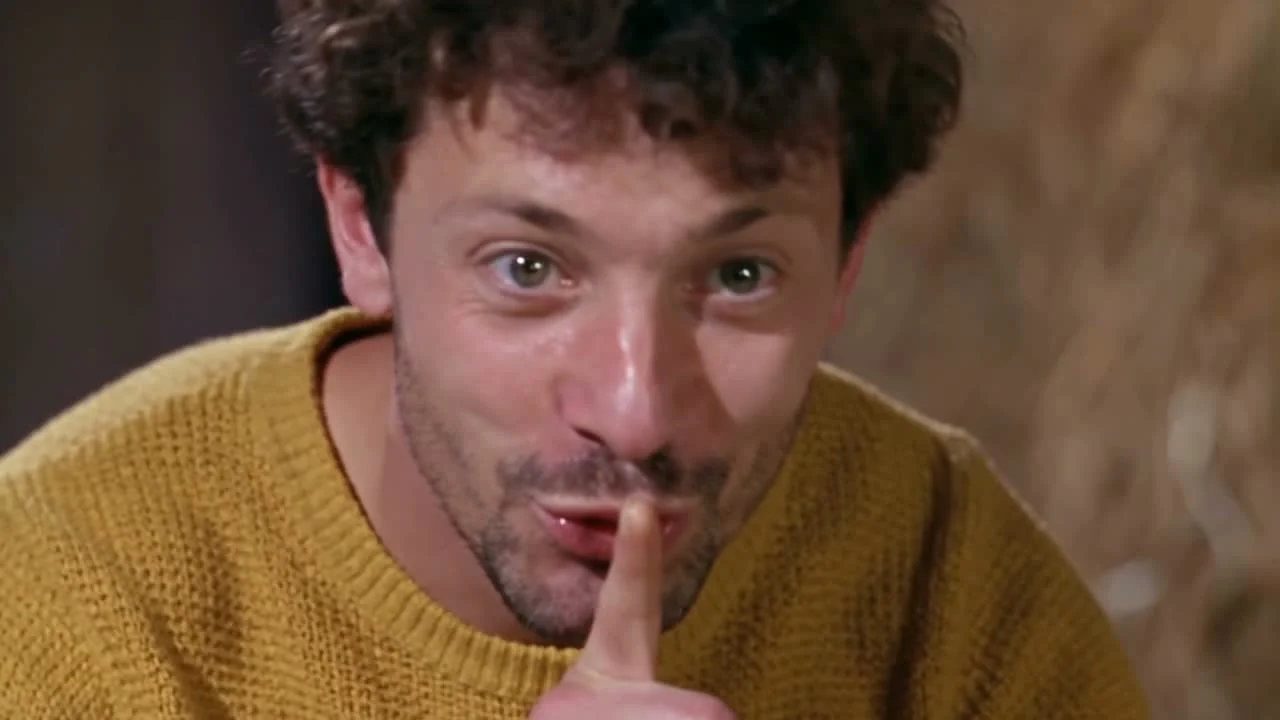
The output is a 12-second, 720p, 16:9 landscape MP4 with meme audio and no watermark. You do not need to write a prompt, select a model or assemble the dance in an editor.
Preview your photos before paying
After choosing your photos, select Free preview beside Make my video. Sign in if prompted and complete the Cloudflare verification check. Each account has one free preview shared by both modes. The Preview tab uses GPT Image 2 to edit one recomposed comic barn scene. Your first photo replaces the tiny dancer on the left; in Me + a friend mode, your second photo also replaces the shocked onlooker on the right. Both faces are visible, with the dancer’s bent-knee tiptoe, curled shoes and the onlooker’s exaggerated reaction kept in place. No video allowance is used.
With one photo, you play the dancer and the reference onlooker stays. With two, photo 2 casts the onlooker. Your one request creates a personalized image; it does not reuse a fixed sample. Choose your photos and mode carefully: after a request is created, the allowance is used even if generation fails. The public preview files remain available for 24 hours and are then scheduled for deletion. Expiry does not restore the allowance; an existing image download can be retried without generating again.
These are image illustrations, not frames taken from the paid video, so they cannot promise the final likeness, movement or continuity. Compare actual one-photo and two-photo videos to judge those differences and the known limitations before paying.
Choose one photo or two
In Just me, your photo supplies the dancer's identity. The maiden from the reference scene remains as the onlooker. In Me + a friend, photo 1 is the dancer and photo 2 is the maiden. Upload a separate portrait for each role rather than a group photo.
Both modes use 1 video allowance. A second person does not add to the generation price. Only use photos of adults who have agreed to appear; do not upload celebrities.
Upload photos the generator can use
Choose a sharp, well-lit portrait with one person facing the camera. Avoid sunglasses, masks, hats that hide the face, and distant faces. Use JPG, PNG or WebP, up to 10 MB per photo. The short side must be at least 512 pixels; extremely wide or tall images are rejected.
- Open the photo upload tool. Keep Just me for a single dancer.
- Select Add photo under The little man and choose the dancer's portrait.
- For two people, choose Me + a friend, then add the second portrait under The maiden.
- Check that the portraits are in the intended roles. Use Replace or Remove to correct a selection before generating.
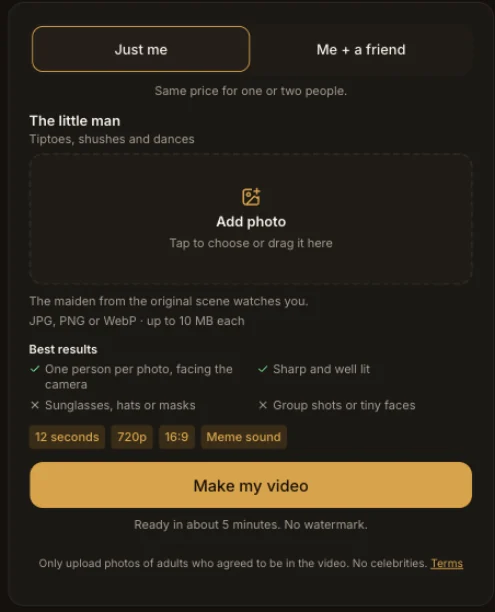
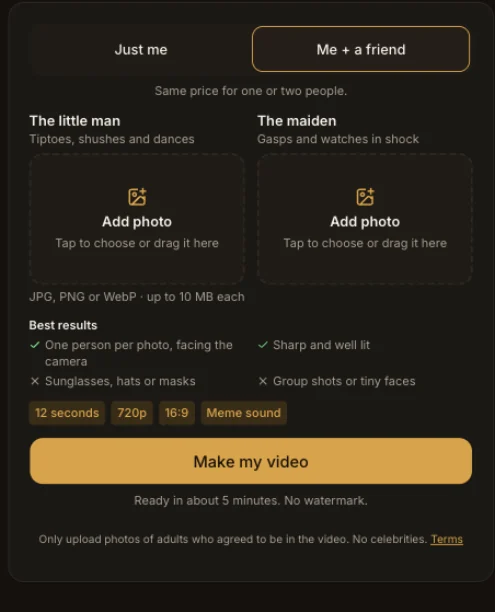
Buy a video allowance and start the dance
Sign in and buy a package if you do not have a video allowance. The current one-time packages are:
- 1 video: $9.90.
- 3 videos: $19.90, about $6.63 per video.
- 10 videos: $44.90, $4.49 per video.
There is no subscription, and unused video allowances never expire. Browsing examples is free; making a personalized video is paid.
Select Make my video once your photos and balance are ready. The result appears in the same tool when it is ready. Two historical provider runs took 4 minutes 30 seconds and 4 minutes 48 seconds, excluding upload and post-processing; these are examples, not a delivery-time guarantee. You can keep reading the page while it processes.
See what one and two photos produce
These are real outputs from an earlier template test, using AI-generated portraits of fictional adults. They show the intended role assignments and dance, not a guarantee that every new video will reproduce the same face, clothes or expression.
One-photo example
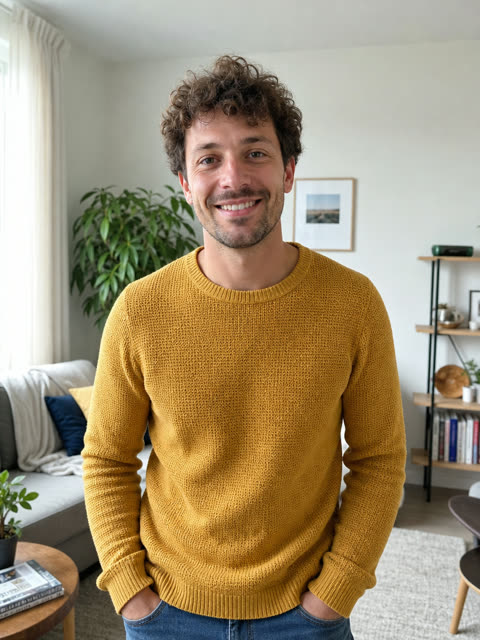
Open the one-photo MP4, 12.04 seconds. The dancer is personalized; the maiden stays from the reference scene.
Two-photo example
Watch the two-photo result, 12.04 seconds. The man supplies the dancer's identity; the woman supplies the maiden's. The second face does not fully match the input in this test. Compare the measured specs and known issues.
Download or share the finished video
When your result is ready, play it in the result panel. Choose Download for the MP4, or Share and copy the watch link. Someone with that link can watch without an account. You can turn the link off or delete the video later; that cannot remove copies someone already downloaded.
Sharing a link does not automatically publish the video in the site gallery. Public gallery display requires your opt-in and approval. Ordinary share pages are not offered for search indexing. See the privacy policy for photo handling and sharing details.
Check these limits before posting
Landscape output: The generator currently makes 16:9 video, not native 9:16. A vertical feed may leave space above and below it. Cropping it yourself can remove the dancer's feet or the maiden's reaction.
Included audio: The download includes meme audio associated with RiFF RAFF's “Tip Toe Wing In My Jawwdinz.” The service does not grant a commercial music license or promise that social platforms will accept or monetize an upload. A platform may mute or remove it following a rights claim. Review the music terms before deciding how to use the clip.
AI variation: This is a newly generated video. Likeness, motion and clothing can vary. The inspiration wall shows creative remixes; costumes and pet characters are not selectable options in the current generator.
Post a landscape clip without losing the joke
- Download the finished MP4 and watch it through once. Check both faces, the feet and the onlooker's reaction.
- In TikTok, Reels or Shorts, import the MP4. Use the fit/original framing option if available; preview the whole 16:9 frame before applying a vertical crop.
- Add a short caption outside the faces and feet. Check the final preview with the destination's interface overlays visible.
- Listen before posting: the file already has audio, so adding another soundtrack can create overlapping sound. Check the platform's available music permissions and your intended use.
- Identify AI-made media with the platform's disclosure controls where required. Preview the upload, then publish only when you are satisfied with the result and permissions.
If an upload or generation fails
For a rejected upload, check file format, size, dimensions and whether the face is clearly visible, then choose another suitable portrait. If video generation fails, 1 video allowance returns to your balance. That is an allowance return, not a cash refund. A completed video with a likeness or clothing issue does not automatically count as a technical failure; a new generation uses another allowance. Contact support before paying for another attempt if the result is wrong. Use Try again after checking the on-screen message; contact support if the problem continues.
Make your Tip Toeing in My Jordans AI video, or read where the Rumpelstiltskin AI meme and its song came from.